Monday, October 30, 2023

How to Remove Your PIN From Windows 10


This article covers how to remove a PIN in Windows 10. PINs are an optional way to sign in, much like a password, alongside other options like fingerprint and face authentication. 


If you have kids, roommates, or a work device, it's usually best to keep a lock on your user account, but if it's just you at home, how you sign in likely doesn't matter. So, if convenience is a priority, you can go without a password and not be at risk.

How Do I Disable the PIN in Windows 10?

Like setting a PIN in Windows, removing one takes only a few clicks and seconds. Ensure you've signed in to the account you want to remove the PIN from before you begin.

Open the Start menu and select Settings. 


Navigate to Accounts. 


  Select Sign-in options on the left side. 


Select Windows Hello PIN, and then press Remove. 


 When asked to confirm to remove your PIN, select Remove once more, and then your PIN will be gone. 


If you signed in to Windows with your Microsoft account, you'll need to enter your Microsoft account password to remove your PIN after confirming.

Windows 10 PIN Tips and Tricks

If you change your mind and want a PIN again, making one is just as easy. From the same place where you chose Remove, you can now select Add. Set and confirm your PIN to be prompted for it the next time you sign in. In the future, select Change instead to make a new PIN.

The Sign-in options page also allows you to sign in to your device in various ways, including a traditional password. From this window, you can easily adjust all your sign-in needs.

If you sign in with a Microsoft account, however, you will not be able to change your Microsoft password here. Any sign-in method you choose, even if you linked your computer to your Microsoft account, will apply only to your computer and not your Microsoft account.

FAQ
  • Why can't I remove my Windows 10 pin?

    If the Windows Hello Pin section is unavailable, make sure you've logged in to the correct account. Also, from Settings > Accounts > Sign-in options, ensure that the slider next to Require Windows Hello sign-in for Microsoft accounts is set to the off position.

  • How do I remove my password and pin from Windows 10?

    Use the above instructions to disable your pin. To remove your Windows 10 password as well, sign in to your local account and access your password from Settings > Accounts > Sign-in options > Change. When you see prompts to enter your old and new password, leave the fields empty and select Finish. You can also go password-free by using a different Windows Hello sign-in method and turning on Require Windows Hello sign-in for Microsoft accounts from the Sign-in options area.


Facebook

21thsoft 

How to Download and Install Telegram on Windows?


Telegram is the most popular and commonly used messaging service in the World. Telegram is known for its simple chat features and is one of the greatest UIs in social communication applications. Telegram is a non-profit application that allows users to communicate with each other via text, images, stickers, GIFs, etc. It is a cloud-based messaging service, so it doesn’t require us to continuously look for backing up our data, unlike WhatsApp. Telegram is also an end-to-end encrypted messaging service that cares about the privacy of the users. It means that not any third party nor either Telegram will be able to read your messages.

Unlike many messaging applications that only allow up to 256 members in a group or broadcast channels like WhatsApp, Signal, Telegram gives us the option to add a large number of members to our group. There are even some groups on Telegram that have more than 2,00,000 members. Telegram allows the users to connect from any device like Android, iOS, Windows, or Mac. Now, let’s look at how Telegram works and installs on Windows devices.

Installing Telegram on Windows

Follow the below steps to install Telegram on Windows:

Step 1: Visit the official website of Telegram using any web browser like Google Chrome, Microsoft Edge, etc.


 Step 2: Press the “INSTALL” button on the website to start the download of the Telegram Application.


 Step 3: It will then automatically re-direct you to the Windows Store App by Microsoft for the Windows device and the download will start in the background.


 Step 4: After the download gets finished, the Telegram app will get installed within 2-3 minutes. It will then show up on the all programs list of the Start menu.


 Step 5: Click on the Telegram app to open it. After the Telegram app opens up, it will show you a “START MESSAGING” button to proceed to login into your Telegram account. Click on the “START MESSAGING” button to proceed to the login window.


 Step 6: Then it will show you a QR code for scanning once you click on the “START MESSAGING” button. If you already have a mobile phone with the Telegram account activated in it, then Scan the given QR code that comes on your screen. It will open your chats on your Telegram phone to your Telegram Windows profile.


 Step 7: If you don’t have a Telegram account activated on your smartphone, then click on “Or login using your phone number”. It will then ask you for your phone number details and then it will send a unique OTP to your phone number via a message for verification. Enter the OTP to start messaging on Telegram via Windows device just like your smartphone.


Congratulations!! At this point, you have successfully installed Telegram on your Windows device.


Facebook 

21thsoft 

How to Download and Install Photoshop


Installing Photoshop used to be something of a chore back in the early days when we had to rely on optical media like DVDs and CD-ROMs (remember them?).

Ever since the launch of the Creative Cloud platform, Adobe has relied heavily on its online content distribution network to provide fast app downloads for its subscribers. 

This has made things a bit easier overall, but it’s a big change for many users. If you’re not sure how to get your new Photoshop subscription ready to use on your computer, I’ve got you covered with info on how to download and install Photoshop for both Windows PCs and macOS. 

The process is pretty simple, even if it takes a while, and it’s almost identical on both Windows and Mac computers thanks to the Creative Cloud app. 

The Creative Cloud app acts as a sort of ‘hub’ for managing all your Adobe subscription content including programs like Photoshop, fonts, stock images, and everything in between.

Table of Contents [show]

Step 1: Downloading Photoshop 

Note: If you already have the Creative Cloud app installed, you can skip to Step 2.

Adobe has created a specialized “onboarding” process for new Photoshop users, but the entire purpose is to get the Creative Cloud app onto your computer. The Creative Cloud app is then used to manage all aspects of your Adobe Creative Cloud subscription, including the installation of Photoshop. 


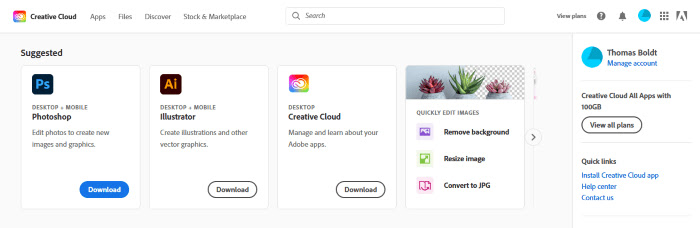
To get started, visit https://creativecloud.adobe.com/cc/. Sign in to your Adobe account, and you’ll be taken to your Creative Cloud dashboard. 

This may look a bit different depending on the exact plan that you are subscribed to, but you should see something similar to the screenshot below in your web browser. 

The first row of icons in your dashboard shows off some suggested actions, which should include Photoshop. Click the Download button to get started. 

Note: If for some reason you don’t see Photoshop listed in the suggested section, you can click the Apps link in the menu bar, and then find the entry for Photoshop. 


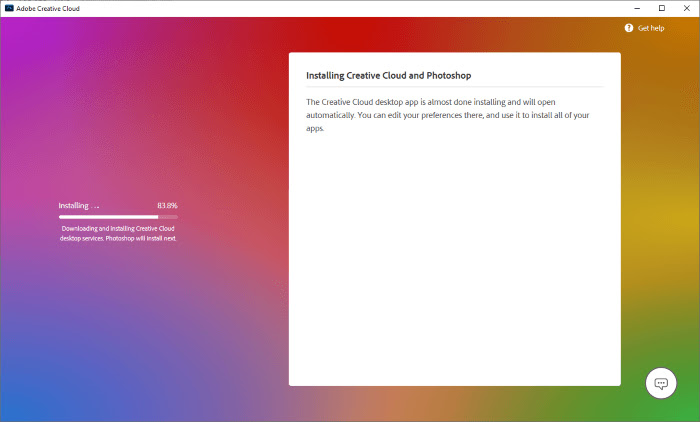
Once the download is complete, locate the installer file and run it. Follow the simple on-screen directions provided and it will download and install the latest version of the Creative Cloud app. You may need to grant administrator access on Windows or enter your password on macOS.


During the process, Adobe uses the chance to grab a little bit of free data about you for their customer database, although you can choose to click Skip question rather than provide an answer. 

You can also simply walk away and ignore it since the installation process has already started and doesn’t actually require an answer to continue. 


If you click Skip question repeatedly, you’ll see that there isn’t actually any advantage to giving Adobe information about you for free – but you can, if you want to. 


This process installs the Creative Cloud desktop app on your computer, which will then be used to install Photoshop automatically (as you can see if you take a close look at the fine print in the installer.


 Once the Creative Cloud desktop app is installed successfully, it will load automatically. The app looks almost identical on Windows and macOS, which adds a nice level of consistency to the user experience.


The app also features a quick tour to get you acquainted with the new app, although you don’t need to learn every feature right away. 

Step 2: Photoshop Install

If you’ve been following this guide from the beginning, Photoshop will start automatically installing itself in the background as part of Adobe’s Photoshop-focused onboarding process. 


If you downloaded the Creative Cloud app by itself instead of using the specialized Photoshop installation process, don’t worry! Photoshop won’t install itself automatically, but it’s extremely easy to do. 


Click the All apps link on the left pane of the Creative Cloud app to see all the apps that are available with your current subscription plan. 


Find the entry for Photoshop, and click the Install button. The Creative Cloud app will handle everything else for you automatically.


That’s all there is to it – no swapping disks or worrying about scratched DVDs, just one click, and you’re done. 

Step 3: Start Photoshopping!

Once Photoshop is installed, it should launch automatically. After it loads, it may require you to log in to your Adobe account, although it shares login credentials with your web browser so this may happen automatically in the background if you’re still logged in to your Adobe account there. 


Creative Cloud subscriptions allow you to have two devices using Photoshop at once, but you can easily manage this during the launch process if necessary. 

If you’ve already installed Photoshop on other devices, you may have to deauthorize one of those devices in order to continue.

Congratulations, you’ve successfully downloaded and installed Photoshop on your computer! 

PhotoshopBuzz has a huge range of handy tutorials for some common editing projects, and Photoshop also has a nice set of in-app tutorials to help new users learn what kind of edits are possible. 

Happy Photoshopping!


 Facebook

21thsoft 


How to Turn On Dark Mode in Windows 11


This article explains how to use Windows 11 dark mode. In addition to this setting, Windows 11 offers two other features, contrast themes and Night Light, designed to be used in darker environments.

How to Use Dark Mode in Windows 11

Dark mode changes most of the Windows interface to a darker tone, which many users find preferable to the bright white menu screens. Follow these steps to turn on dark mode in Windows 11:

Dark mode only applies to the Windows 11 desktop and certain Microsoft apps. You'll have to turn on dark mode in Google Chrome and other apps separately.

 Open Settings, either from the Start menu or with the Win+i keyboard shortcut.


Select Personalization on the left side.


Select Colors. 


Select the Choose your mode drop-down and choose Dark. 


Alternatively, choose Custom if you want to set up dark mode for apps and Windows separately.

Windows will switch to dark mode.

Optionally, select an Accent color. Turn on the toggles next to Show accent color on Start and taskbar and Show accent color on title bars and windows borders if you want your accent color to appear in those locations. 


How to Use Dark Themes in Windows 11

Contrast themes are an alternative to dark mode that can make the system interface easier to see and read. Windows 11 offers a few different options:

Select Start (the Windows icon) on the taskbar and open the Settings app. 


Select Personalization on the left side. 


Select Colors. 


Select Contrast themes. 


 Select the Contrast themes drop-down menu and choose from one of the themes. You can see a preview of the themes at the top of the page. 


Select Apply. 


 The theme will be applied. Optionally, select Edit to further customize the theme. 


Press Alt+Left Shift+Print Screen to switch in and out of contrast mode.

How to Turn On Night Light in Windows 11

Night Light is a feature in Windows 11 that automatically adjust your screen contrast based on the time of day. Designed to reduce eye strain, the Night Light feature can be used in combination with dark mode or on its own. Here’s how to turn it on:

Select Start (the Windows icon) from the taskbar and open the Settings app. 


Go to System > Display. 


 Select the Night light toggle to turn it On. Optionally, select Night light for further customization options.


 Adjust the Strength slider to brighten or dim the screen. Select Schedule night light if you want to set a time for Night Light to automatically turn on.


Turn On Dark Mode Automatically in Windows 11

If you want to schedule dark mode to turn on automatically, you'll need to install a third-party app such as Auto Dark Mode. To keep your computer safe from viruses, only download apps from Microsoft Store.

FAQ
  • How do I make the font bigger in Windows?

    If you want something temporary, press Crtl + plus (+) on your keyboard to increase the font in a web browser or email client (and other apps, too). To increase the overall size, check out our How to Change the Font Size on Your Screen article.

  • How do I change my screen resolution in Windows 11?

    Go to Settings > System > Display > Display resolution drop-down. There can be some caveats to that, however, so if it doesn't work the way you expect, check out our How to Adjust the Screen Resolution in Windows 11 article.


 Facebook

21thsoft 

Wednesday, September 13, 2023

6 Ways to Open the Task Manager in Windows 11

 Fastest ways: Right-clicking Start or Win key+ S. A desktop shortcut is another handy option


What to Know

  • Search for Task Manager, press Ctrl+Shift+Esc, or right-click Start and choose Task Manager.
  • To create a shortcut, right-click the desktop and select New > Shortcut. Type taskmgr.exe and select Next.
  • Enter taskmgr in the Command Prompt, Terminal, PowerShell, Run box, or File Explorer address bar.

This article explains how to open Task Manager in Windows 11. With Windows Task Manager, you can keep track of system processes, monitor resource usage, and force-stop applications.

How to Open Task Manager Using the Search Bar

The easiest way to access Task Manager in Windows 11 is to use the search bar.

Press the Windows Key+S or select Search (the magnifying glass icon) in the taskbar. If you don't see the Search icon, select Start (the Windows icon). 


To add the Search icon to the taskbar, right-click the taskbar, select Taskbar settings, and turn on the Search toggle.

In the search bar, enter Task Manager and select the app when it appears in the search results. 


Open Task Manager From the Taskbar

In the taskbar, right-click Start (the Windows icon) or press the Windows key+X to open the Power User Menu, then select Task Manager.


Open Task Manager With Keyboard Shortcuts

The keyboard shortcut to open Task Manager in Windows 11 is Ctrl+Shift+Esc. Alternatively, press the Windows key+X to open the Power User Menu, then press the T key.

Open Task Manager With Run Command

The Run command to open Task Manager is taskmgr. Press the Windows key+R or right-click Start (the Windows key) > Run in the taskbar and enter taskmgr in the Run box.


Open Task Manager From File Explorer

Another option is to access Task Manager from Windows File Explorer:

Select File Explorer (the folder icon) in the Windows 11 taskbar. 


Select the address bar at the top of File Explorer, type taskmgr, and press Enter.


Open Task Manager With Command Prompt

You can likewise use Windows Command Prompt, Powershell, or Windows Terminal to open Task Manager. Open any of these programs, type taskmgr.exe, and press Enter. 


How to Create a Desktop Shortcut for Windows Task Manager

If you want to make a desktop shortcut for Task Manager, follow these steps:

Right-click anywhere on the desktop and select New > Shortcut. 


In the pop-up window, type taskmgr.exe, and then select Next. 


You'll be asked to give your shortcut a name. Enter Task Manager, then select Finish. 


 The Task Manager shortcut will appear on your Windows 11 desktop. Select it to open the Task Manager any time you want. 


 Facebook

21thsoft